Since we shipped the slide cart as part of Candy Rack late last year, one request has come up more than almost any other: let shoppers redeem a discount code without sending them to checkout. Most standalone cart drawers already support this. Ours didn't, until now.
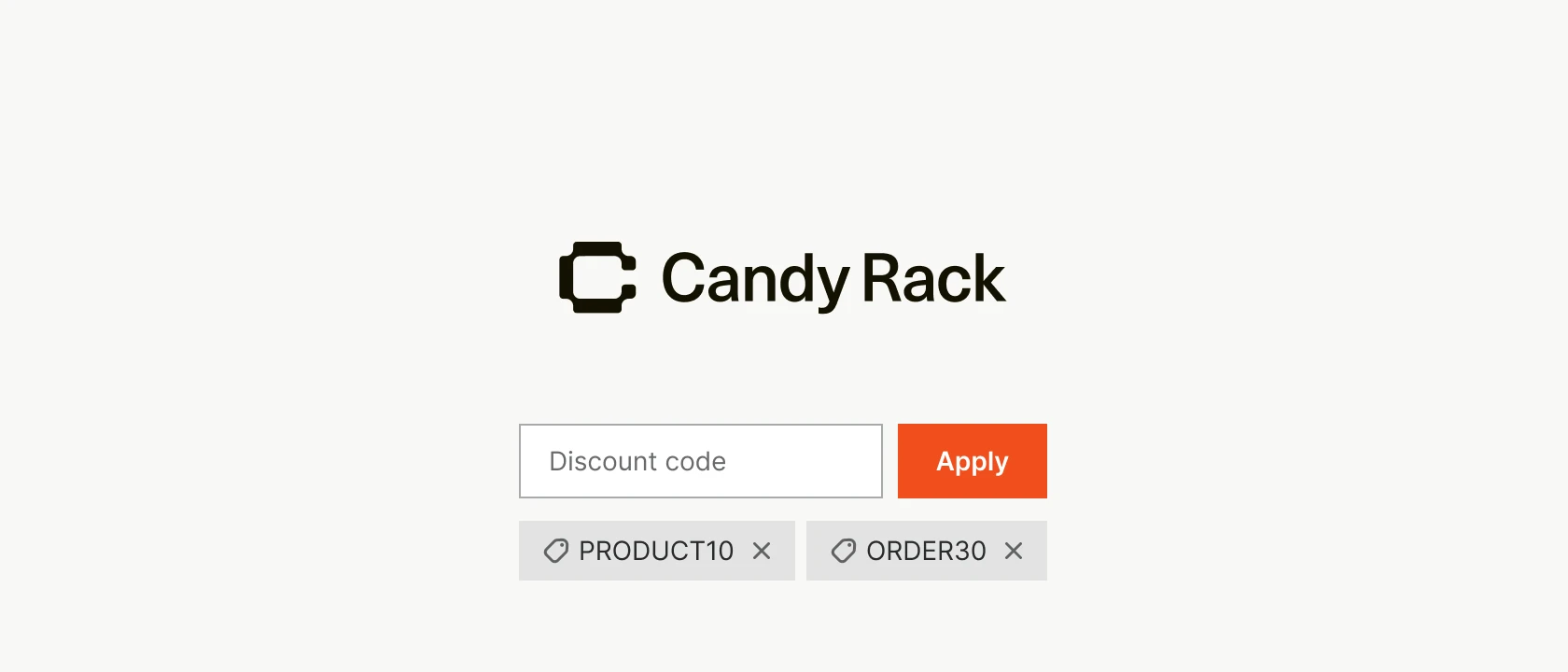
Discount codes are now built into the slide cart's footer. A shopper types a code, presses Apply, and the cart total and line-item breakdown update immediately, with no page reload and no trip to checkout.
How it works
Whatever a shopper enters is checked against Shopify's discount API in real time. A valid code applies to the cart right away, updating the total and the per-line breakdown to reflect it. An invalid or expired code shows an inline error message instead, and the total is left untouched.
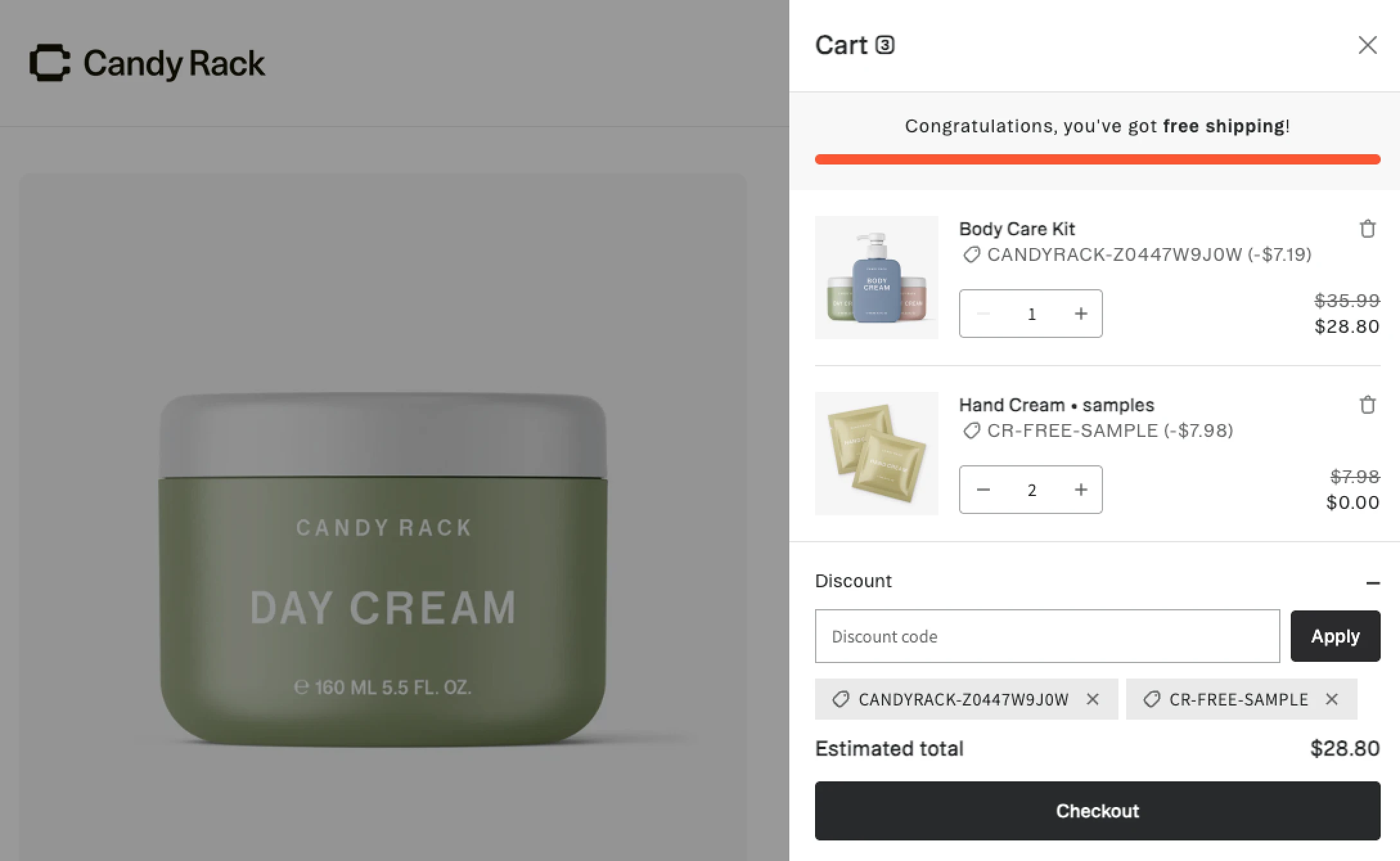
Once a code is applied, it shows as a small removable tag next to the input, so shoppers can pull it off and try a different one if they change their mind.
Stacking follows Shopify's own rules, not Candy Rack's: enter more than one code, and they'll combine only if your existing discount combination settings allow it. If they don't combine, the most recently entered code replaces whatever was applied before. And if a shopper arrives through a discount link (a URL with a ?discount=XYZ parameter, the kind you'd send in an email campaign), the code shows as already applied the moment they open the cart. There's nothing for them to type.
Making it match your cart
Everything about the field is configurable from your slide cart's Footer settings, next to Total, Custom text, Terms and conditions, Checkout buttons, and Custom block:
- Placeholder text for the input (default: "Discount code")
- Error message shown for a code that can't be applied, plus its font size
- Apply button label, font size, background and text colors for both default and hover states, and an optional border
- Applied-code tag font size
- Order-level discount preview toggle, which shows a discount applied in the settings preview so you can check how that state looks without needing a real code on hand
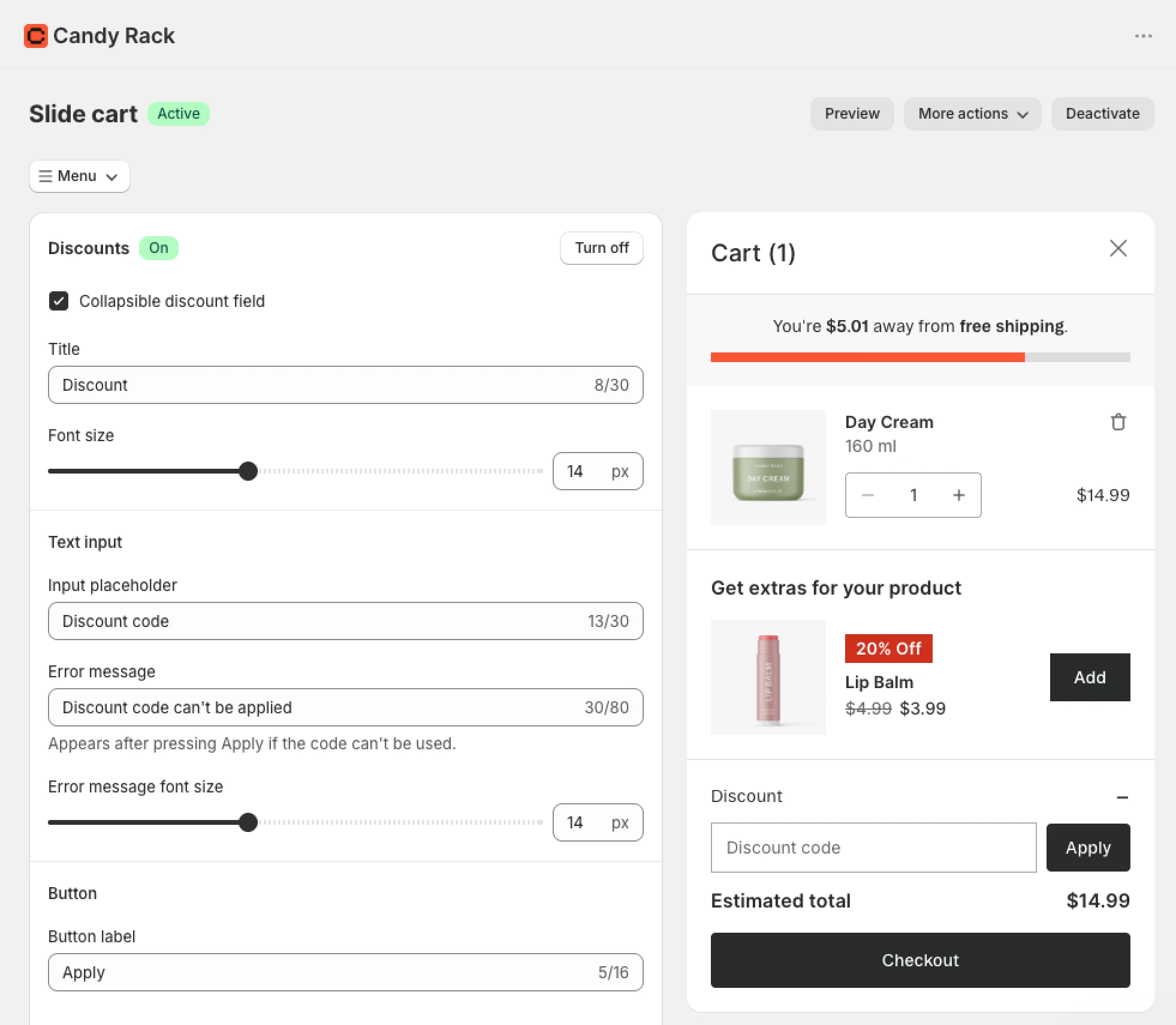
There's also a Collapsible discount field option. Switching it on tucks the input behind a link instead of showing an open text field by default, which is worth considering: an empty discount box sitting in the cart is a well-known reason shoppers go looking for a code elsewhere instead of finishing checkout. Collapsing it keeps the option available without putting it front and center.
Turning it on
- Open your slide cart settings inside Candy Rack.
- Turn on Discounts under Footer (and Collapsible discount field, if you'd rather keep it tucked away).
- Set your placeholder text, error message, and button styling to match the rest of your cart.
- Save.
Why we built it
Shoppers who have a code, or think they might, tend to look for it the moment they open the cart, not at the last step of checkout. If it's nowhere to be found until then, some will already have gone off to search for one, or dropped the order altogether, before they ever reach the discount field Shopify gives you at checkout. By then it's often too late.
That's really a specific case of the whole pitch of a slide cart: keep shoppers on the page instead of sending them somewhere else. A discount field that only shows up at checkout works against that, and it's a gap that's easy to spot once you've used a cart drawer that handles it natively. Closing it was less about adding something new and more about not leaving an obvious piece out.
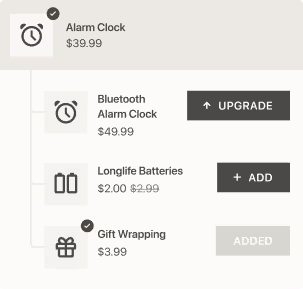
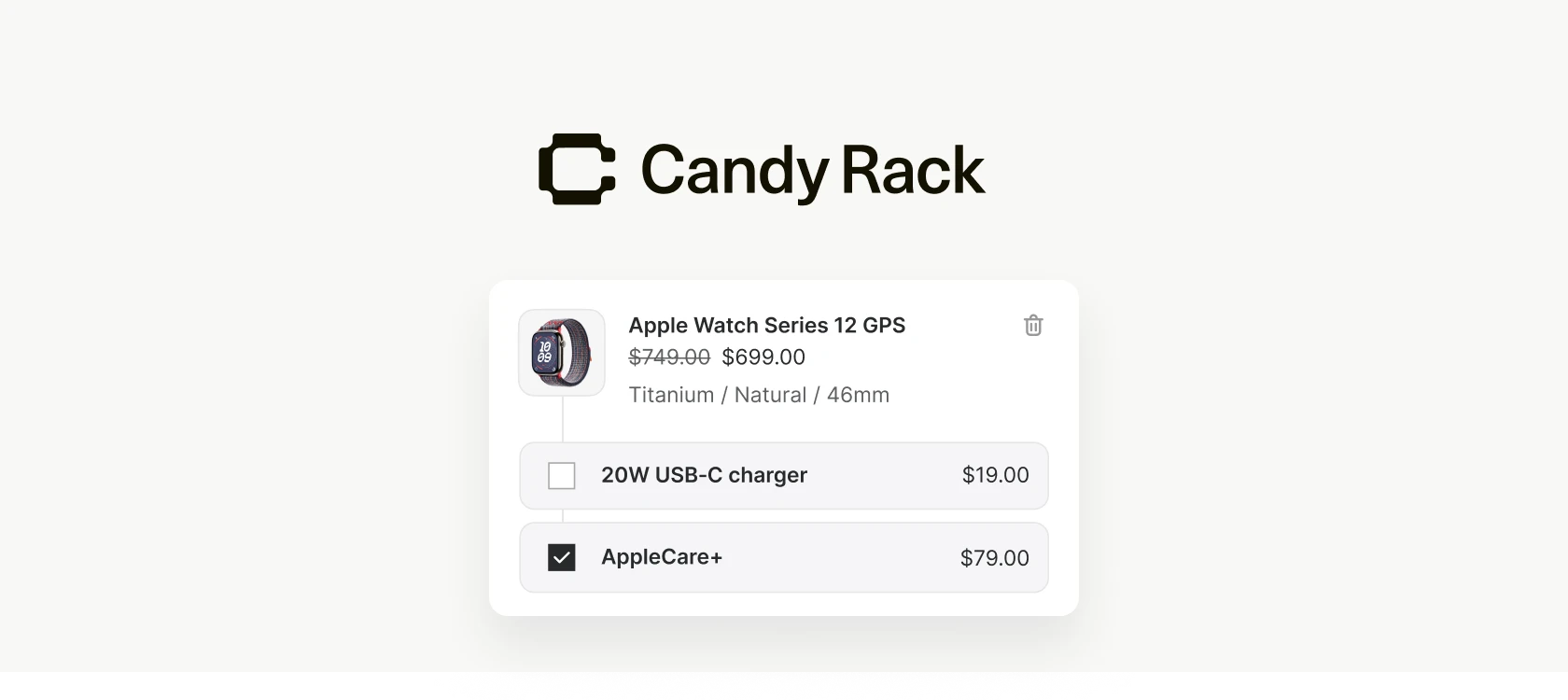
It joins the rest of what we've built into the slide cart since launch: the rewards bar, custom blocks, collection upsells, AI-generated descriptions, and the newer recommendation engines. For the thinking behind the cart itself, see our upsell strategy guide. If it's checkout itself you're trying to optimize rather than the cart, our guide to Shopify checkout covers that side.
Discount codes are live in Candy Rack today. If you're already running the slide cart, you'll find Discounts under Footer in your settings. Haven't tried it yet? Install Candy Rack from the Shopify App Store; the slide cart, rewards bar, upsells, and discount codes all ship in the same app.