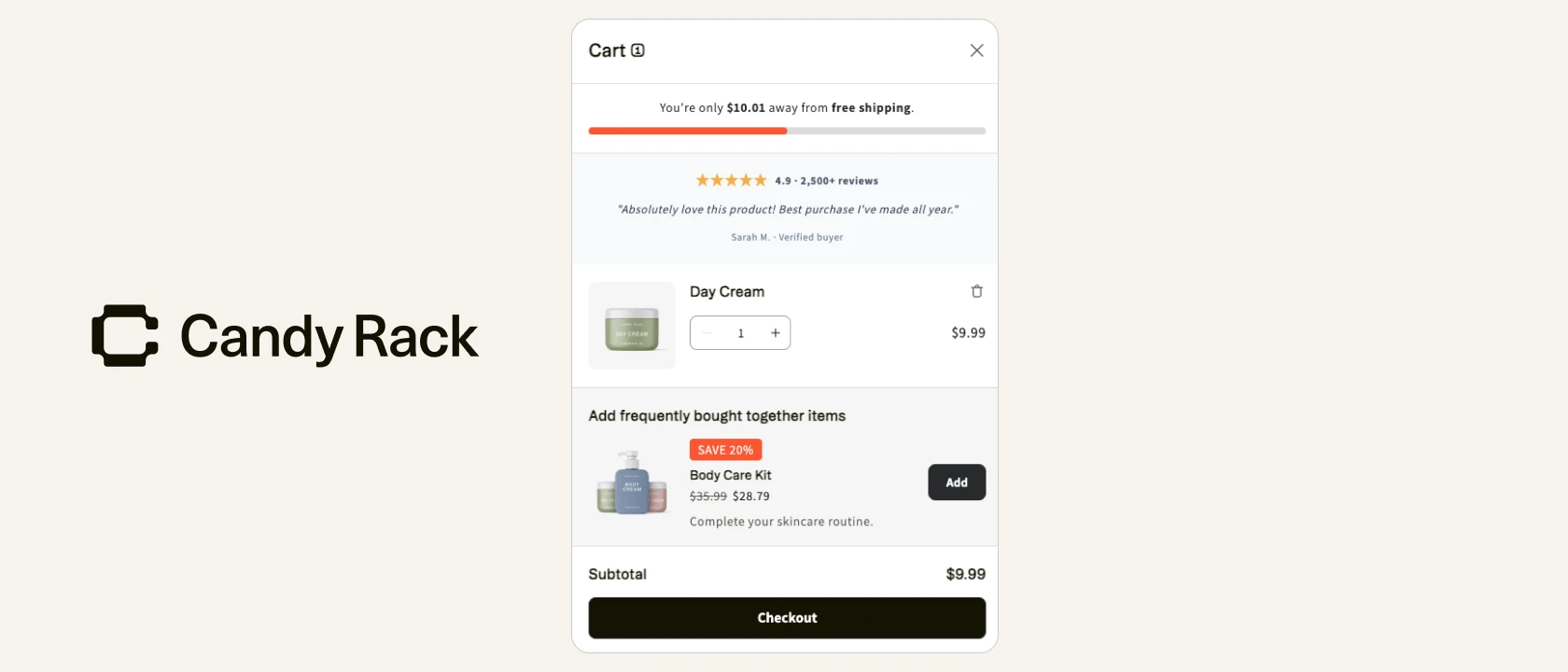
Since we shipped the slide cart as part of Candy Rack earlier this year, the one piece of feedback we've heard most often from merchants is some version of "this is great, but I'd like to add one more thing." A payment-method strip. A trust badge. A countdown timer. A scratch card. Every store has its own conversion lever, and a cart with a fixed layout can only carry so many of them.

Custom blocks are our answer. They let you drop your own HTML and CSS straight into the slide cart, then position the result exactly where you want — alongside the cart items or right next to the checkout button. If you can write it in a Shopify section, you can drop it into the slide cart.
What you can build
A custom block is essentially a flexible container, which makes the use cases broad. From what we've seen in early access, the most common patterns merchants are reaching for are:
- Payment method logos to reassure shoppers they can pay how they like
- Social proof — star ratings, review snippets, "X customers bought this today" counters
- Countdown timers for free-shipping cut-offs or end-of-sale urgency
- Trust marks and secure-checkout badges to soften last-mile friction
- Scratch cards that reveal a mystery discount when the shopper "scratches" them
- Shipping and returns notices — free-shipping thresholds, hassle-free returns promises
- USP icons that compress your key value props into a single row
- Promotional banners for campaigns or seasonal offers
This is the same toolbox conversion-focused stores already use on product and cart pages, just brought into the slide cart itself — which, for an upsell-driven store, is by far the most attention-dense moment of the buying flow.
Where custom blocks live
You get one custom block in each of two slide-cart zones:
- The body, alongside your cart items
- The footer, near the checkout button
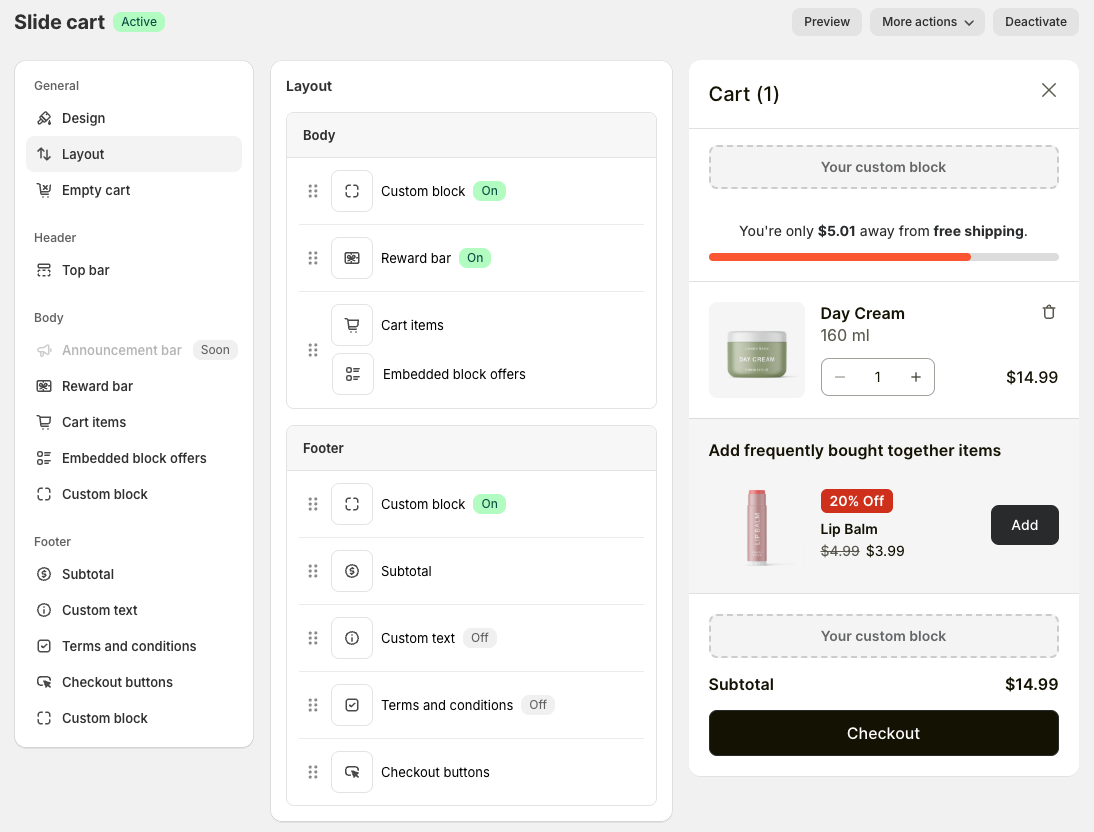
That's up to two custom blocks per slide cart. The exact position inside each zone is controlled from Layout settings, so you can drag the block above or below the rewards bar, in between line items, or under the subtotal — whatever the layout calls for.
We deliberately kept this constrained. Two blocks is enough to add real merchandising without turning the slide cart into a billboard. If shoppers can't see the checkout button without scrolling, none of the rest matters.
How to add one
Setup is intentionally short:
- Open your slide cart settings inside Candy Rack.
- Find the Custom block component in either the body or footer section.
- Paste your HTML and CSS into the code field.
- Save your changes.
- Drag the block to your preferred spot in Layout settings.
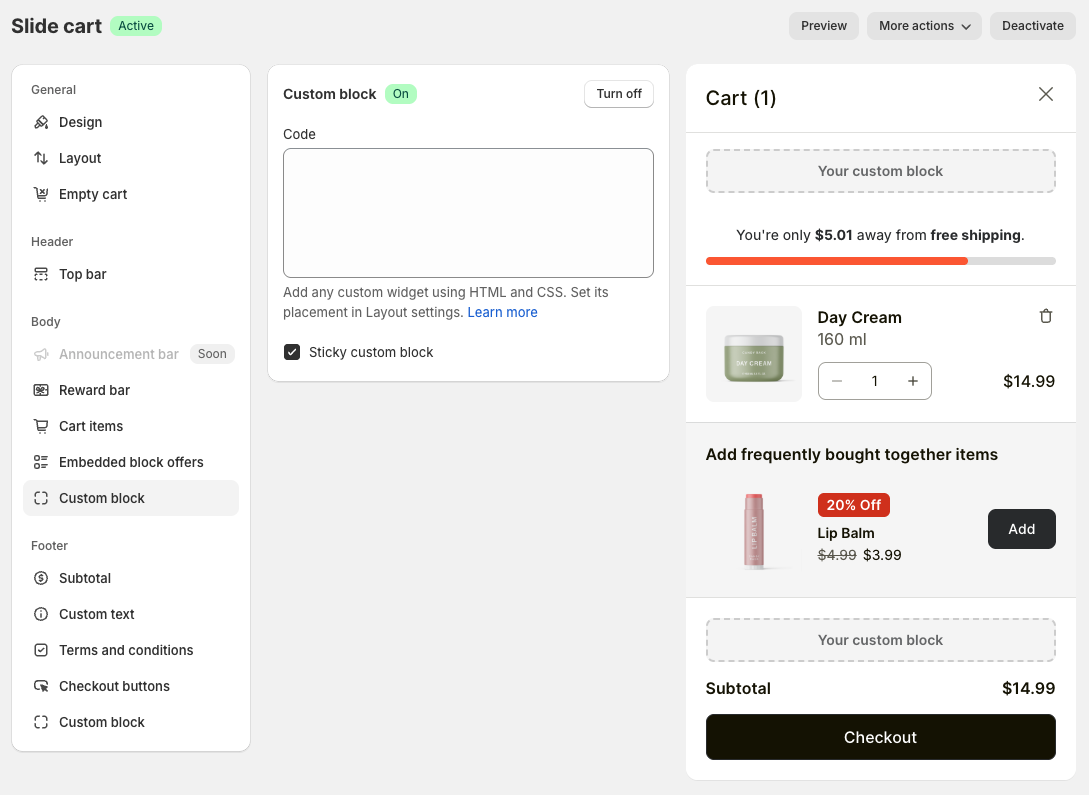
Custom blocks support HTML and CSS fully. The CSS you write applies inside the slide cart, so keep your selectors specific — a global button rule will leak into other elements. JavaScript is a partial story: <script> tags aren't parsed, but inline event attributes like onclick, onmouseover, and onload work. That's enough for most small interactions — a button that fires an alert, a timer that updates the DOM, a click handler that opens a tooltip. If you need fetch calls, complex state, or third-party SDKs, get in touch. We're tracking interest in fuller JS support and will add a dedicated field if enough merchants ask for it.
Preview before going live
One detail worth highlighting: you can save a custom block, keep the feature switched off, and still see exactly how it'll render in the cart using a special preview link. The standard preview button only shows blocks that are already live, so this dedicated link is the only way to stage and review a block without exposing it to real shoppers.
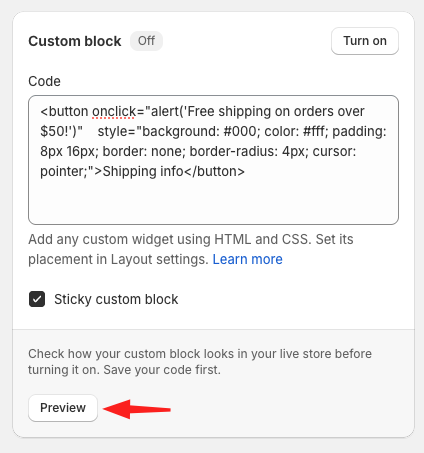
That's the workflow we use ourselves when we want a teammate's sign-off or want to test on a real device before flipping the switch.
Don't write code? Ask an LLM
Most of our customers aren't developers, and that's fine. The examples we ship in the help center — an auto-scrolling reviews carousel, a 10-minute countdown timer, a row of trust signals, a scratch card — are all copy-paste ready, and tweaking them is exactly the kind of small front-end task LLMs are now genuinely good at. Paste the snippet into Claude (or your AI tool of choice), describe the change you want, and you'll get back working HTML and CSS in seconds. If something still doesn't fit, our support team is on chat.

Why we built it
Slide carts win or lose on two things: speed and merchandising density. Speed is a build problem and we've handled it. Merchandising density, though, is unique to each store — some need trust badges, some need urgency, some need a free-shipping countdown, some need a scratch card to nudge an undecided buyer over the line. Custom blocks let you make those calls yourself instead of waiting for us to ship the specific component you have in mind.
The feature is live in Candy Rack today. If you're already running the slide cart, you'll find the Custom block component in your existing layout. If you haven't tried the slide cart yet, you can install Candy Rack from the Shopify App Store — the slide cart, rewards bar, and custom blocks all ship in the same app.
For more on getting the most out of the cart itself, see our upsell strategy guide and our notes on optimizing your Shopify checkout.