Candy Rack analytics tells you how your upsells perform across the whole store. It has never been good at a much smaller question: which items in this particular order came from an upsell, and from which offer?
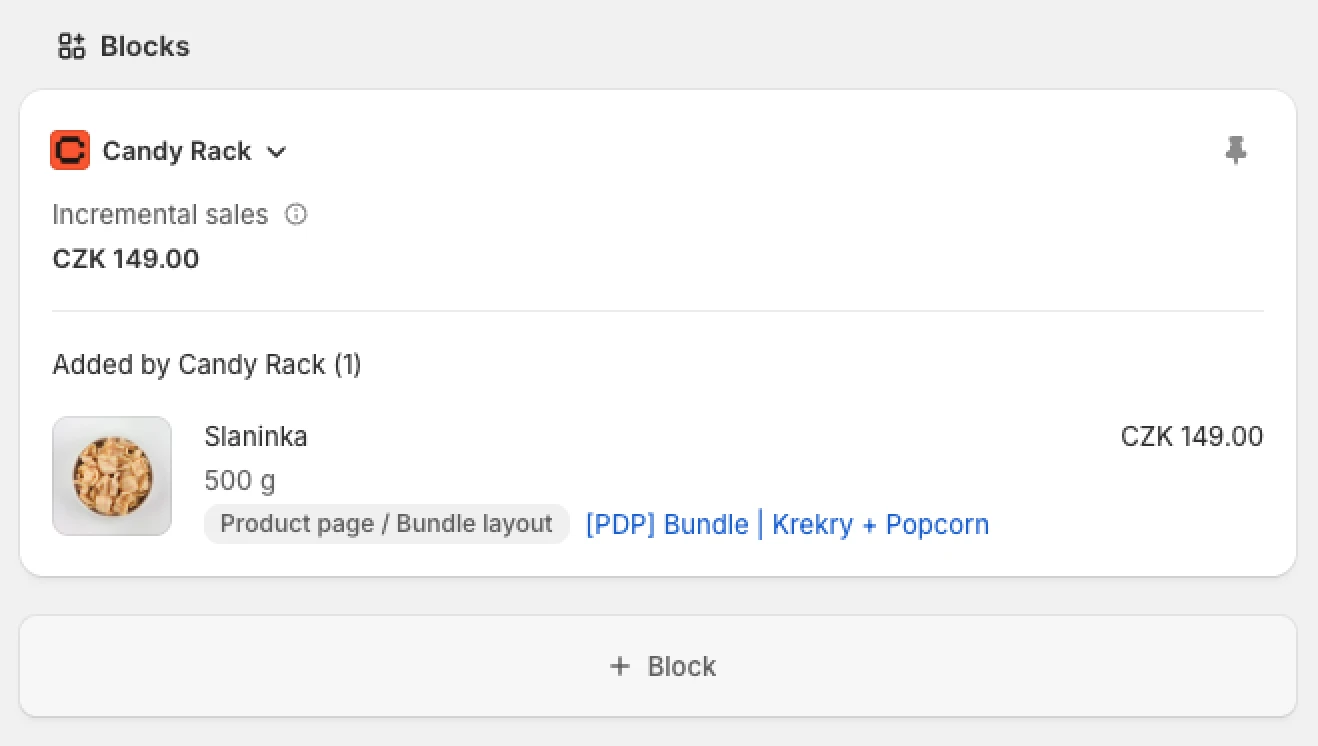
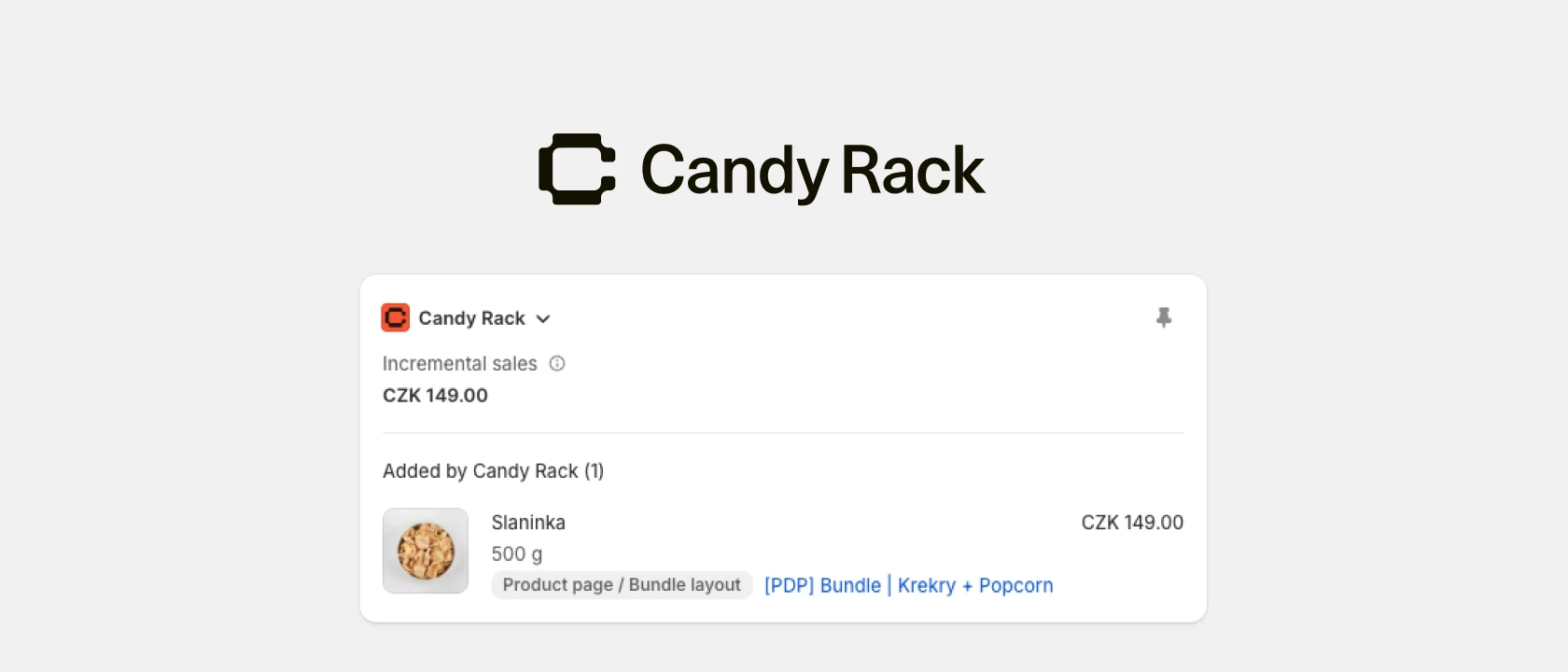
That answer now sits on the order itself. A new Candy Rack block on the Shopify order details page shows the order's Incremental sales and lists every line item Candy Rack added: the product, variant and price, the placement where the shopper accepted the offer, and the offer's name with a link to it.
What the block shows
The block has two parts. The headline is Incremental sales, the same metric you know from the Candy Rack Analytics dashboard, where it means total sales generated directly by Candy Rack offers. Here it covers this one order only. Below it, Added by Candy Rack lists the upsold items, with their count in brackets.
Every row has its own offer link, because one order often contains items from several offers. The order in the screenshot has five upsold items from four offers, accepted in two product page placements: button offers in an embedded block, and volume bundles in the Bundle layout.
Why we built it
The first reason is support and fulfilment. Until now, the only trace an upsell left on an order was a technical line item property and a candyrack order tag. Merchants regularly tell us these get in the way of their fulfilment workflows, and neither tells a support agent where an item came from. The block answers "why is this item in the order?" in plain language, right on the order page.
The second reason is trust in the number. Store-wide figures, like the ones in our upsell benchmarks from 3,199 Shopify stores, tell you whether upsells work. They don't let you check a single order. The block puts the headline directly above the items behind it, so you can compare it with the order yourself.
What the block deliberately leaves out is store-wide data. Nobody opens a single order to read a 30-day total, so average order value, total incremental sales and offer performance stay in Candy Rack Analytics. You can also ask Shopify Sidekick for them without leaving the admin.
How to add it to your order page
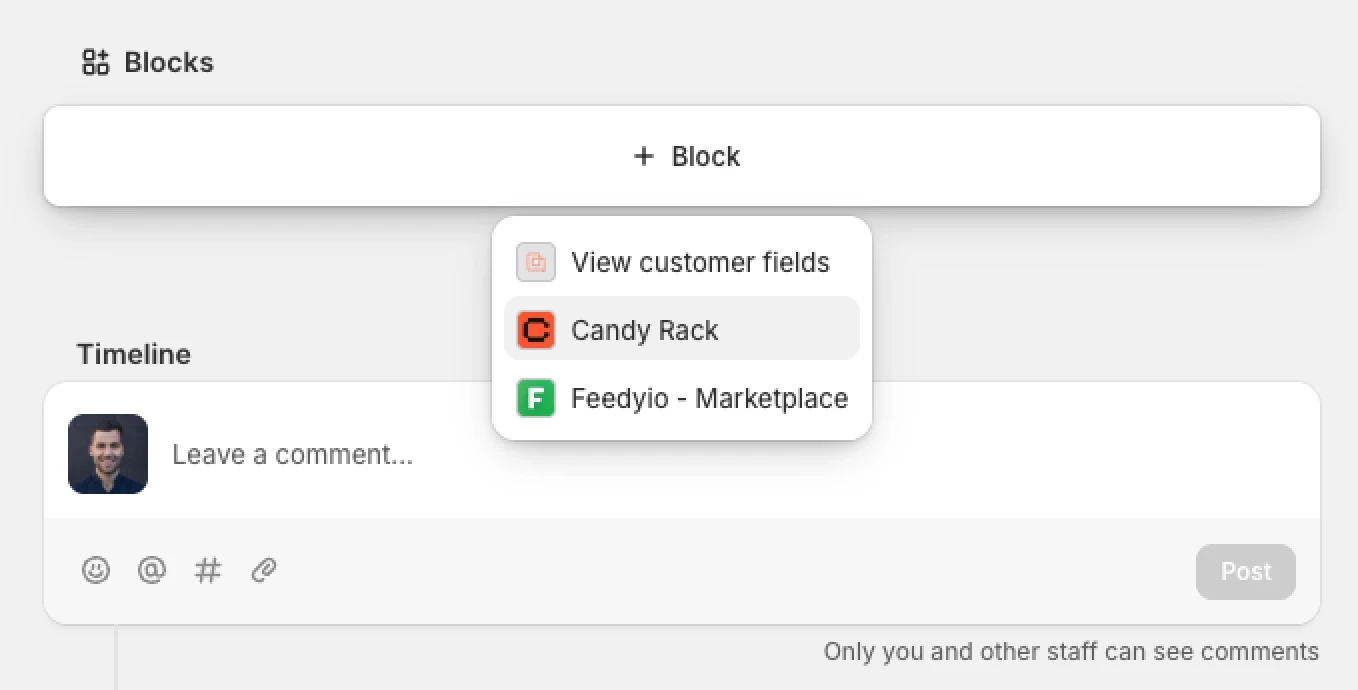
There's nothing to configure in Candy Rack. You only need to show the block in your admin:
- Open an order in your Shopify admin that contains an item added by Candy Rack.
- Scroll to the Blocks section. If the Candy Rack block isn't there yet, add it.
- Click the pin icon on the block to keep it on your order pages.
Good to know
- The block only reads data. It doesn't change the order, its tags or its line items.
- Shopify limits the height of every admin block. Content taller than 300 px is collapsed behind a Show more button that apps can't remove, so an order with many upsold items needs one extra click.
The order details block is live in Candy Rack now. If you haven't tried Candy Rack yet, you can install it from the Shopify App Store. And if you're still deciding which offers and placements to start with, see how we built an upsell strategy that generates 25% of revenue.