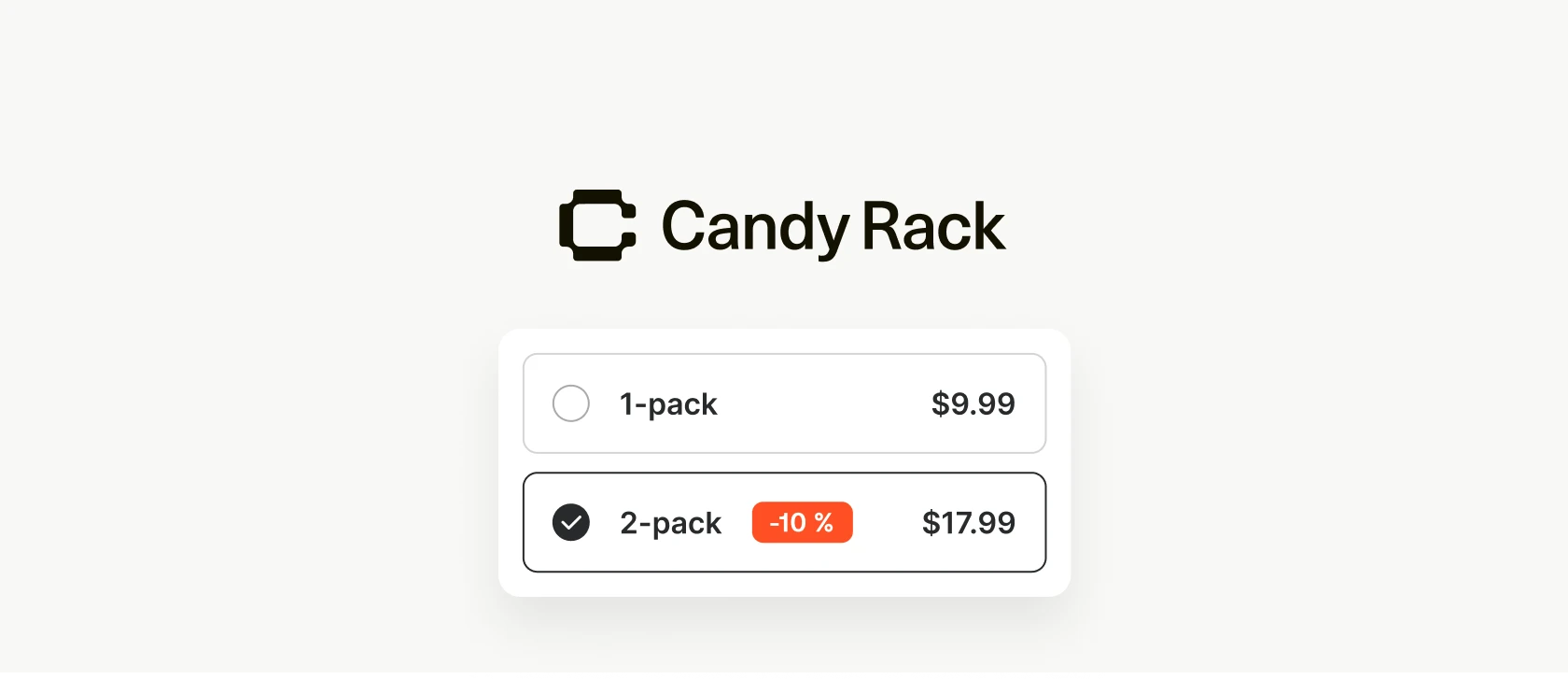
Většina nabídek Candy Rack přidá do objednávky jiný produkt. Množstevní balíčky řeší jednodušší případ: zákazník již má o produkt zájem a nejlepším upsellem je více stejného zboží.
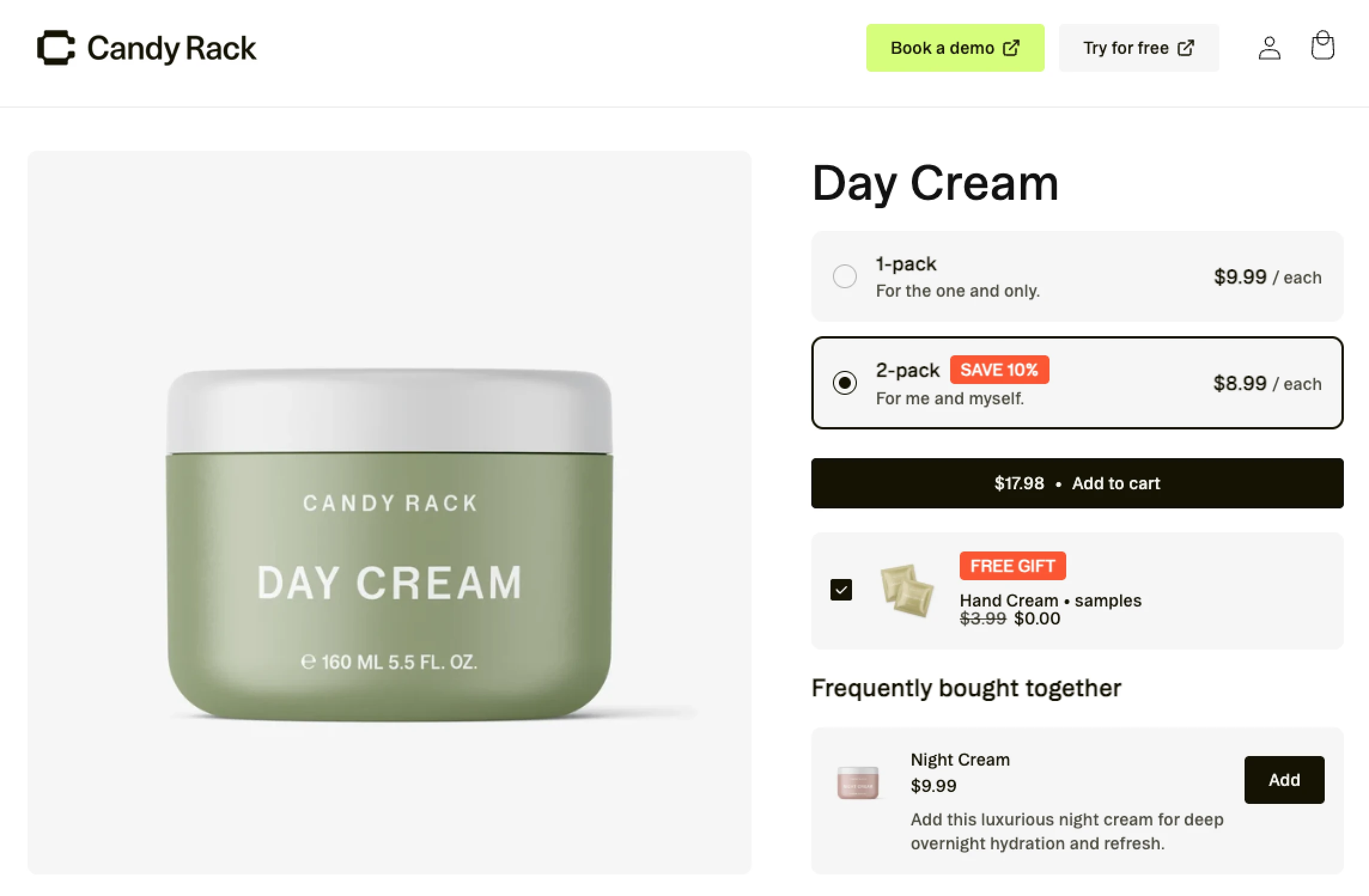
Množstevní balíčky vám umožní přeměnit jeden produkt na odstupňovanou nabídku „kup víc, ušetři víc“. Zákazník si může přímo na stránce produktu vybrat jeden kus za plnou cenu, dva s menší slevou nebo tři s větší slevou. Candy Rack následně přidá zvolené množství a uplatní odpovídající cenu v košíku i u pokladny.
Co zákazníci uvidí
Nabídka se zobrazí jako nové rozvržení balíčku vložené na stránku produktu. Každá úroveň je volitelný řádek s informacemi, které zákazník potřebuje k porovnání možností:
- Množství, například Kup 1, Kup 2 nebo Kup 3
- Název a volitelný podnadpis, například „Zásoba na 4 týdny“
- Cena za kus a celková cena
- Původní cena za kus při uplatnění slevy
- Automaticky vypočítaný štítek Ušetříte $X
- Volitelné vlastní štítky, například „500 g“ nebo „Nejvýhodnější koupě“
Vy určíte, která úroveň je vybraná při načtení stránky. Když zákazník přepne úrovně, ceny, úspora a stav výběru se okamžitě aktualizují. Běžné tlačítko „Přidat do košíku“ pak přidá množství z dané úrovně, takže nabídka zůstává součástí standardního procesu na stránce produktu.
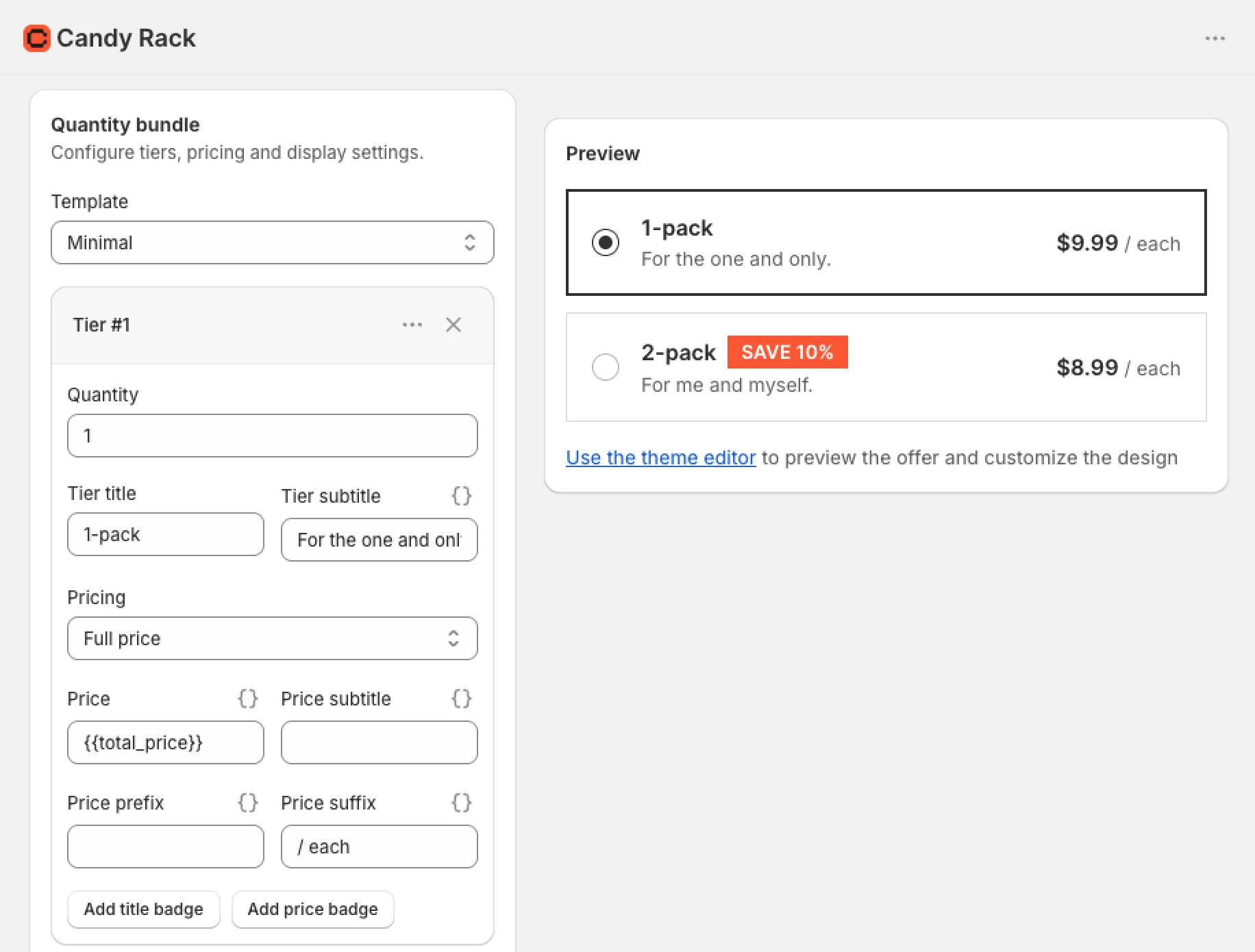
Pokud má produkt varianty, můžete také povolit varianty pro jednotlivé položky. Zákazník, který kupuje například tři trička, si může před přidáním balíčku vybrat pro každý kus jinou velikost nebo barvu. Nabídka je stále omezena na jeden produkt, ale jednotlivé kusy nemusí mít stejnou variantu.
Jak nastavit množstevní balíček
- Otevřete Candy Rack a vytvořte novou nabídku.
- V sekci Umístění zvolte Stránka produktu, Vložený blok a Rozvržení balíčku.
- Vyberte, zda se má nabídka zobrazit pro všechny produkty, konkrétní produkty nebo konkrétní kolekce.
- Přidejte své úrovně. Nastavte množství, název, podnadpis, ceny, cenová pole a štítky pro každou z nich.
- Zvolte úroveň, která má být vybrána jako výchozí.
- Zapněte Povolit varianty pro jednotlivé položky, pokud by zákazníci měli mít možnost vybrat variantu pro každý kus.
- Uložte nabídku, otevřete editor motivu a přidejte nebo umístěte blok Rozvržení balíčku.
- Před zveřejněním nabídky pro všechny zákazníky otestujte každou úroveň v obchodě až po pokladnu.
Tento poslední test je důležitý. Náhled v administraci je užitečný pro texty a rozvržení, ale až v obchodě si ověříte dostupnost variant, rozestupy v motivu, chování košíku a výslednou slevu.
Přizpůsobte balíček svému motivu
Editor motivu ovládá vzhled v obchodě. Můžete změnit název a zprávu o nedostupné variantě, upravit velikost písma a zaoblení rohů a nastavit barvy pro aktivní úroveň, pozadí, text a chyby. Nastavit lze také horní a dolní odsazení.
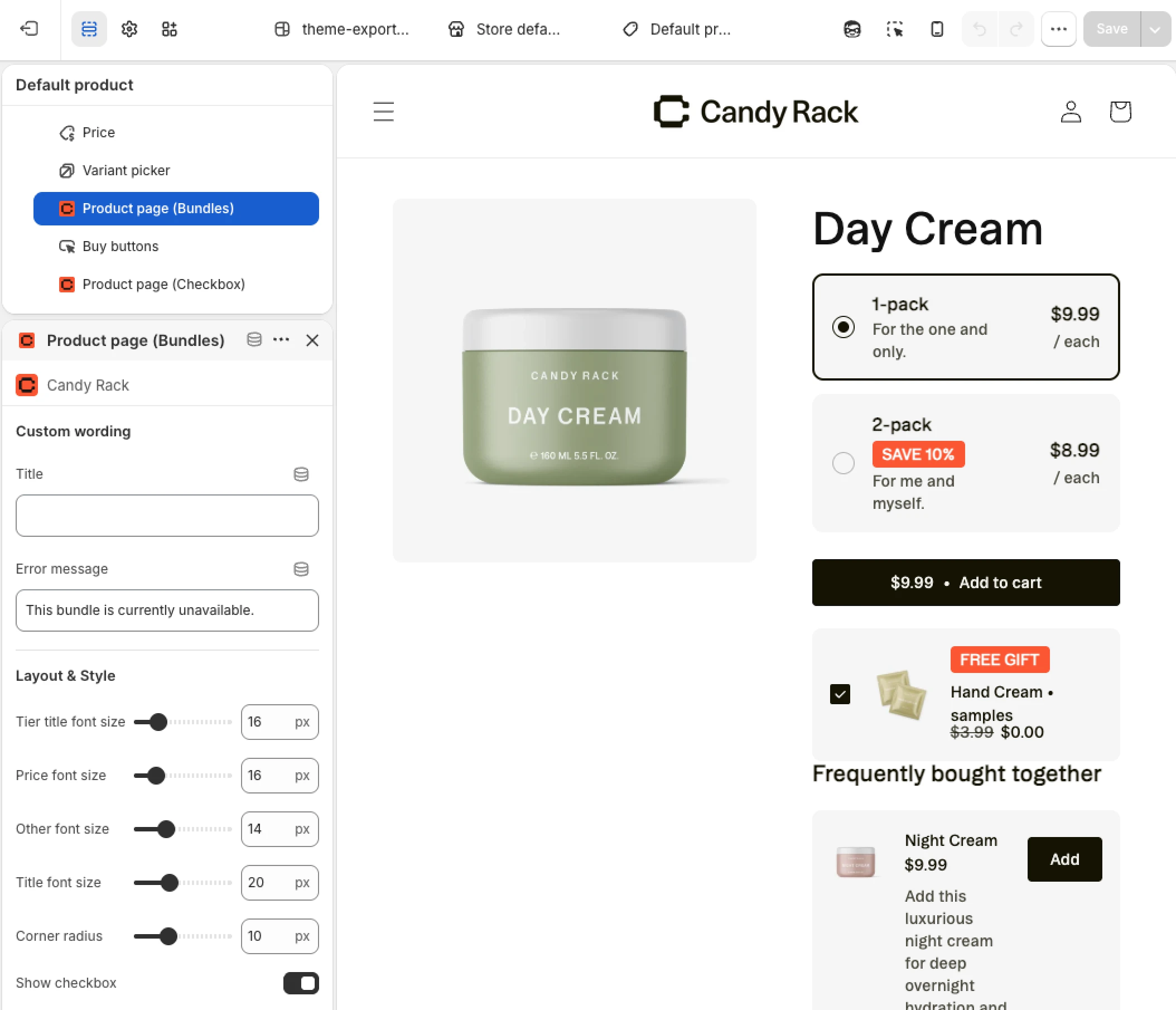
Můžete také zobrazit nebo skrýt zaškrtávací políčko, propojit blok s konkrétními ID nabídek nebo vybrané nabídky vyloučit. Pro změny, které nejsou pokryty standardním nastavením, je k dispozici pole pro vlastní CSS.
Kombinujte balíčky s dalšími umístěními
Rozvržení Bundle nečiní produkt exkluzivním pouze pro množstevní balíčky. Ovládá nabídku množství na stránce produktu, zatímco ostatní nabídky Candy Rack mohou zůstat aktivní pro stejný spouštěcí produkt i jinde v nákupním procesu zákazníka.
Množstevní balíček můžete provozovat současně s:
- Vyskakovacím oknem na stránce produktu, které se zobrazí poté, co zákazník klikne na Přidat do košíku
- Dalšími vloženými bloky na stránce produktu, včetně nabídek s zaškrtávacím políčkem a tlačítkem
- Nabídkami ve vysouvacím a klasickém košíku
- Nabídkami v pokladně a po nákupu, pokud jsou obchod a nabídka jinak způsobilé
To umožňuje zákazníkovi vybrat si větší množství hlavního produktu a přesto získat upsell doplňkového produktu. Každá nabídka si zachovává své vlastní umístění a logiku, zatímco Candy Rack samostatně zpracovává vybrané množství balíčku a slevu.
Proč jsme to vytvořili
Množstevní slevy jsou jedním z nejpřímějších způsobů, jak zvýšit počet položek v objednávce. Nenutí zákazníka hledat druhý produkt nebo chápat složitou sadu. Rozhodnutí je prostě o tom, zda se vyplatí koupit více kusů za lepší cenu.
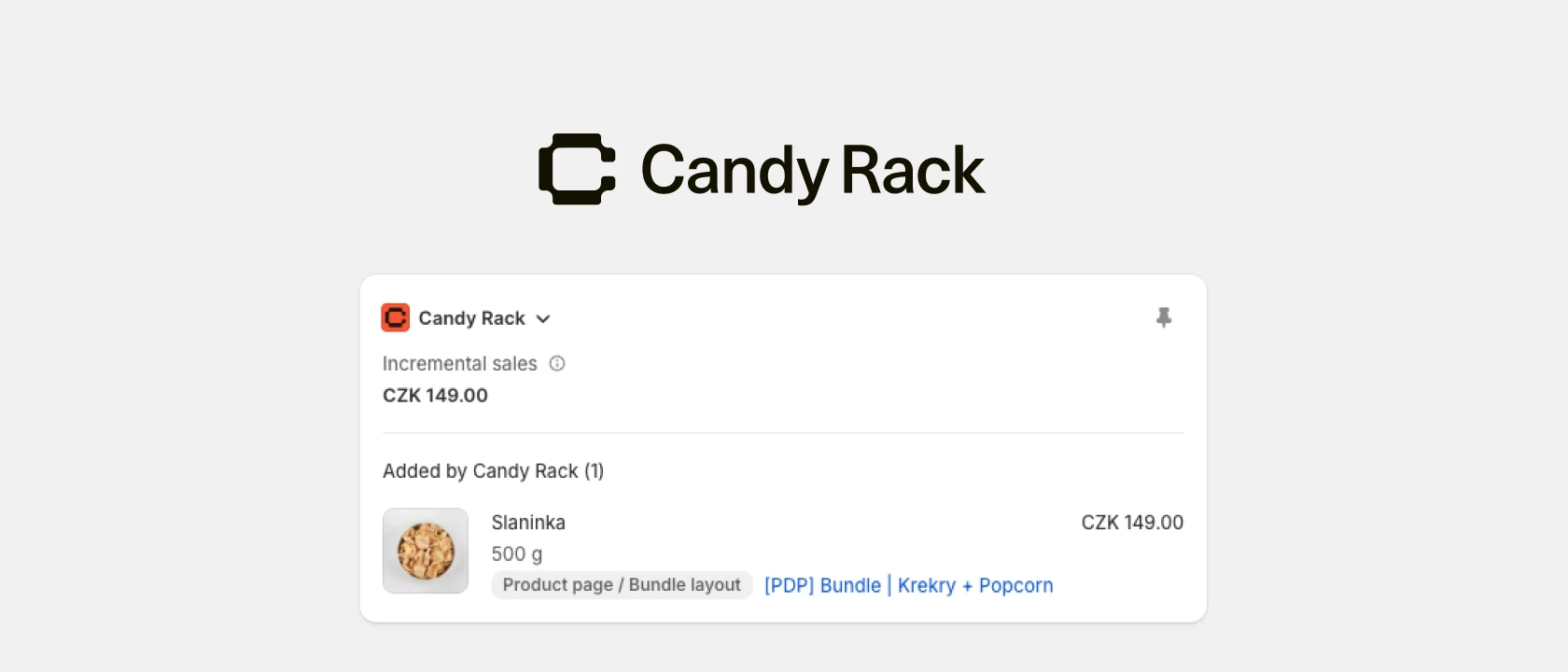
Kompromis je pro obchodníka stejně jasný: vzdáte se části marže na jednotku výměnou za větší objednávku. Candy Rack vám nyní dává nástroje, jak tento kompromis strukturovat, jasně prezentovat a sledovat výsledná zobrazení, přidání do košíku, prodané produkty a tržby ve stávajících analýzách.
Množstevní balíčky jsou v Candy Rack dostupné již dnes. Pokud aplikaci již používáte, vytvořte novou nabídku a hledejte Bundle layout v sekci vložených bloků na stránce produktu. Pokud jste v Candy Rack noví, můžete si jej nainstalovat z Shopify App Store.